
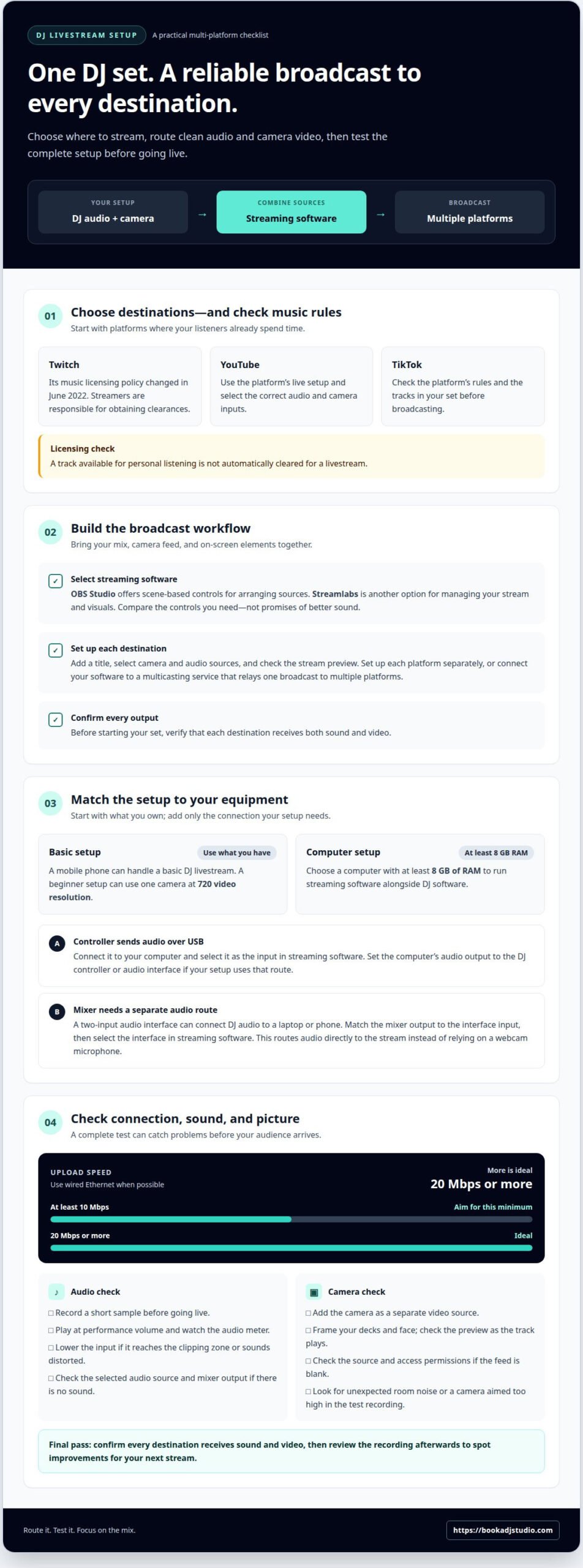
To learn how to start livestreaming as a DJ across multiple platforms, route your mix and camera feed through streaming software that can send one broadcast to several destinations. Use a wired Ethernet connection when possible, and aim for at least 10 Mbps upload speed, with 20 Mbps or more ideal. Then test the complete setup before you go live.
You already know the set is only part of the experience. How you perform, connect with viewers, and bring them back can turn a livestream into a regular part of your DJ journey. This guide explains how to start livestreaming as a DJ: choose a streaming device and audio setup, go live across platforms, prepare your performance, and promote each stream. Get the technical basics right, then focus on the music and the crowd on the other side of the screen.
Key Takeaways
- Choose platforms around your audience and use streaming software to route one DJ set to multiple destinations.
- Match your audio connection, camera, and streaming device to the setup you can run reliably.
- Build an audience with a consistent schedule, then use each livestream to give viewers a reason to return.
- Prepare your playlist and promotion before going live so you can focus on mixing and connecting with your audience.
How to stream across multiple platforms?
Choose platforms where your listeners already spend time, then build a reliable broadcast workflow. These steps help you send your set out without letting the technical setup take over your performance.
-
Choose a Streaming Platform
Pick a platform that suits your audience and format. Twitch, YouTube, and TikTok each offer ways to reach viewers, but your choice also affects how you handle music. Twitch changed its music licensing policy in June 2022, making streamers responsible for obtaining clearances. Check the rules that apply to your chosen platform and the tracks in your set before broadcasting. Don’t assume a track available for personal listening is cleared for a livestream.
-
Select Streaming Software
Choose software that combines your DJ software’s audio, camera feed, and on-screen elements. OBS Studio offers scene-based controls for arranging sources, while Streamlabs is another option for managing your stream and visuals. Test the audio and camera together before settling on a workflow. OBS Studio is a useful starting point if you want direct control over scenes and sources; compare it with Streamlabs based on the controls you need, not on promises of better sound.
-
Configure and Multicast the Livestream
Set up the broadcast in your chosen platform’s live controls: add a title, select the camera and audio sources, and check the stream preview. Repeat this for each destination, or connect your streaming software to a multicasting service that relays one broadcast to multiple platforms. Before starting your set, confirm that each destination is receiving both sound and video.
For Twitch, YouTube, or TikTok, use the platform’s live setup and select the correct input devices. If there’s no sound, check the selected audio source and mixer output. If the camera feed is blank, check the source and access permissions. A short test broadcast can reveal both issues before your audience arrives.
Check that your upload connection is stable enough for the stream, and test it before going live. Review the recording afterwards to identify improvements for your next stream.
What device to livestream from?
- Start with the devices you already own. A mobile phone can handle a basic DJ livestream, while a beginner setup can use one camera at 720 video resolution. If you’re using a computer, choose one with at least 8 GB of RAM to run streaming software alongside your DJ software. The cheapest setup is the one that uses your existing phone, controller, and camera; added costs depend on which equipment you still need, though equipment hire from providers such as JVG Sound Lighting & Visual Pty Ltd offers an accessible way to use professional gear without buying it outright.
- Route clean audio from your DJ controller or mixer to the streaming device. If your controller sends audio over USB, connect it to your computer and select it as the input in your streaming software. Set the computer’s audio output to the DJ controller or audio interface if your setup uses that route. Record a short sample to test the connection before going live.
- Add an audio interface if your mixer’s output needs a separate route to a laptop or phone. A two-input interface can connect DJ audio to a streaming device. Match the mixer’s output to the interface’s input, then select that interface in your streaming software. This sends audio directly to the stream instead of relying on a webcam microphone.
- Balance audio and video before performing. Play a track at performance volume and watch the software’s audio meter. Lower the input if the meter reaches the clipping zone or the sound becomes distorted. Add the webcam or camera as a separate video source, frame your decks and face, and check the preview as the track plays. A short test recording can reveal muted audio, unexpected room noise, or a camera aimed too high.
For a dedicated space with a prepared DJ livestreaming setup, choose a session that fits your recording needs.
A basic setup can use a phone, controller, and camera you already own. Any additional cost depends on the equipment you still need.
Why live stream your DJ set?
A livestream gives your set a stage beyond the booth. Build an audience deliberately, and use each broadcast to learn and connect.
-
Stream Consistently to Grow an Audience
Choose a repeatable schedule so listeners know when to return. Audience growth can take time, so look at progress across several streams rather than judging by one quiet broadcast. For example, use YouTube for a full-length set and Instagram to announce the next session. Keep the format familiar, while refreshing the tracks and transitions each time.
Review the recording after each broadcast. Note where the energy dipped, which transitions felt strong, and when viewers joined or left. Use those observations to shape your next set and improve your performance. If the recording sounds different from your booth mix, check the audio route before going live again.
-
Interact With the Audience and Monetize
Give viewers a reason to participate. Read the chat between mixes, greet people by name, and invite requests that fit your set’s direction. Asking listeners to share a favourite transition makes the stream feel like a shared session rather than a one-way broadcast. Keep your hands free for the decks and respond at natural breaks.
Explore monetization only after understanding each platform’s tools and terms. YouTube and Mixcloud may offer different ways to support creators, while Instagram can help you stay visible between sets. Features and eligibility depend on the platform, so build trust first and treat support as an option, not the purpose of every stream.
- Make each broadcast part of a simple cycle: perform, review, then promote the next session. Share a short highlight on Instagram and direct interested listeners to your next stream. Use the recording to check your sound and camera framing, then adjust one detail at a time. A reliable Ethernet connection can help keep the stream stable while you focus on the audience and the mix.
Performing and promoting livestreams
Give every broadcast a clear musical arc and a reason for viewers to tune in. Use these steps to turn preparation into a performance people can follow and share.
- Build your playlist before opening the stream. Plan the opening, shifts in energy, and closing tracks, while leaving room to read chat and respond naturally. Keep the sequence flexible so you can change direction if the audience responds strongly. Review platform music rules before choosing tracks, especially if you’re broadcasting the same set to multiple destinations.
- Choose a schedule viewers can remember. TikTok livestreams often reach peak activity between 7-10 pm local time, making that window a useful starting point. Another example is a two-hour set every Thursday at 8 pm. Pick a time that suits your routine, announce it consistently, and promote each session beforehand on your social channels.
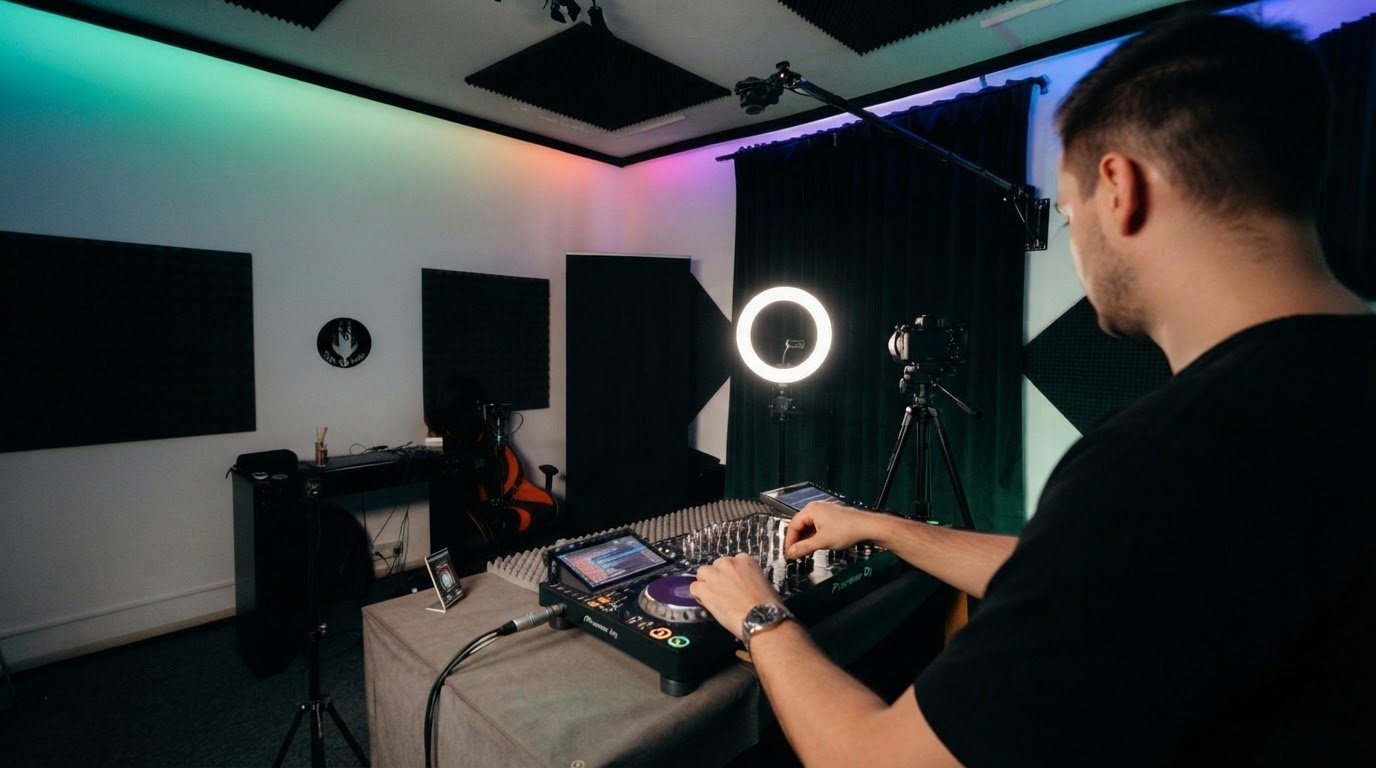
- Shape the visual performance as carefully as the mix. Position the camera to show your controller, hands, and expressions, then use lighting that keeps the scene clear without distracting from the decks. Turn off laptop notifications and keep cables out of your movement area. A clean frame and stable signal help viewers focus on the set.
- Promote the session with a simple sequence. Post the date and time in advance, share a short reminder before going live, then publish a highlight after the set. During the broadcast, greet viewers between transitions and invite a specific response, such as naming a favourite track. Review the recording afterward and apply one improvement to your next performance.
Want a dedicated studio setting for your next performance? Book hourly DJ studio access to focus on your set and livestream presentation.
Preparing a playlist in advance can help DJs focus on mixing and engaging with their audience during a livestream. A ready sequence can provide a dependable base for the set while leaving attention available for the audience. The example DJ livestream schedule lasts 2 hours, giving viewers a clear sense of the session’s planned duration. Keeping the playlist and schedule in mind as you prepare can help you stay focused on the performance and make the broadcast feel considered from its opening through its close.
Book a DJ Studio: Live Streaming Setup
Book a DJ Studio gives you a dedicated space to practise and record a livestream-ready DJ set. Choose Hourly Studio Access for a focused session, or Session Packages if you want to build a regular recording routine. Audio Recording and 4K Video Recording can help you capture your performance for review or promotion.
Turn to the studio when you want to concentrate on your mix and create a polished recording in a professional setting. Bring your set plan, prepare your tracks, and use the session to refine your performance for the camera.
Contact Book a DJ Studio to discuss your next studio session.
Make Your Next Set the Start of a Rhythm
Your next livestream doesn’t need to feel like a major production—while full-scale audio, video, and lighting specialists like livewireav.co.nz power concerts and major events, personal broadcasts can start much simpler. Treat it as the first version of a format you can shape over time: a sound, visual style, and way of connecting that feels unmistakably yours. Choose one idea to develop in your next set, then notice how it affects your performance and connection with the audience.
Learning how to start livestreaming as a DJ is only the opening move. The real craft comes from showing up, refining your choices, and building on each broadcast. Keep your focus on the music, make room for genuine interaction, and let your creative identity come through on camera.
If you’re ready to give your next set a dedicated place to take shape, contact Book a DJ Studio. Bring your sound, trust your instincts, and keep creating. Your next livestream can open a fresh chapter in your DJ journey.
Frequently Asked Questions
What equipment do I need to start livestreaming as a DJ?
Use a DJ controller or mixer, a streaming device, a camera, and a clean audio route. A phone can support a basic setup.
How do I connect a DJ controller or mixer to a computer for livestreaming?
Connect a USB-equipped controller directly, or route a mixer’s output through an audio interface. Select that input in your streaming software.
Which platforms allow DJ livestreams, and how do their music copyright rules differ?
Twitch, YouTube, and TikTok host DJ streams, but their music terms vary. Check each platform’s rules and use tracks cleared for broadcast.
What internet upload speed and computer specifications do I need for DJ streaming?
Target at least 10 Mbps upload, with 20 Mbps or more ideal. A streaming computer should have at least 8 GB of RAM.
How can I improve lighting, camera framing, and sound quality on a budget?
Face available light, frame your hands and decks, and send mixer audio directly to the stream instead of using a camera microphone.
What is the cheapest DJ livestream setup and how much does it cost?
A basic setup can use a phone, controller, and camera you already own. Any additional cost depends on the equipment you still need.