
What if the DJM-750MK2 feels confusing because you’re trying to memorize knobs instead of following the signal? This djm 750mk2 mixer tutorial gives you a clearer starting point: trace the audio from your selected source, through the channel, and out to the master. Once you understand that path, the controls start to make sense.
If the mixer’s packed surface feels overwhelming, or a track won’t play because the input isn’t selected correctly, you’re not alone. Gain, EQ, cueing, and effects can all throw off a transition when you’re unsure what to adjust first. Build confidence one step at a time with a repeatable workflow rather than guesswork.
You’ll learn how to set up a channel, check the signal, cue the incoming track, manage levels, and shape a smooth transition. We’ll also cover a practical way to prepare and troubleshoot a practice session, so you can focus less on second-guessing and more on the mix. Get to know the signal flow, then let your instincts take over.
Key Takeaways
- Follow the signal path from source to master to make the DJM-750MK2’s controls easier to understand.
- Use this djm 750mk2 mixer tutorial to build a consistent setup and mixing routine instead of adjusting controls by guesswork.
- Keep transitions controlled by preparing your cue, balancing channel levels, and moving between tracks with intention.
- When troubleshooting, work from the source and connections toward channel and master output. Check software settings separately.
- Practise transferable mixing skills at Book a DJ Studio on its Pioneer DJM-V10 setup, while allowing for layout differences.
DJM-750MK2 mixer basics: understand the signal path before mixing
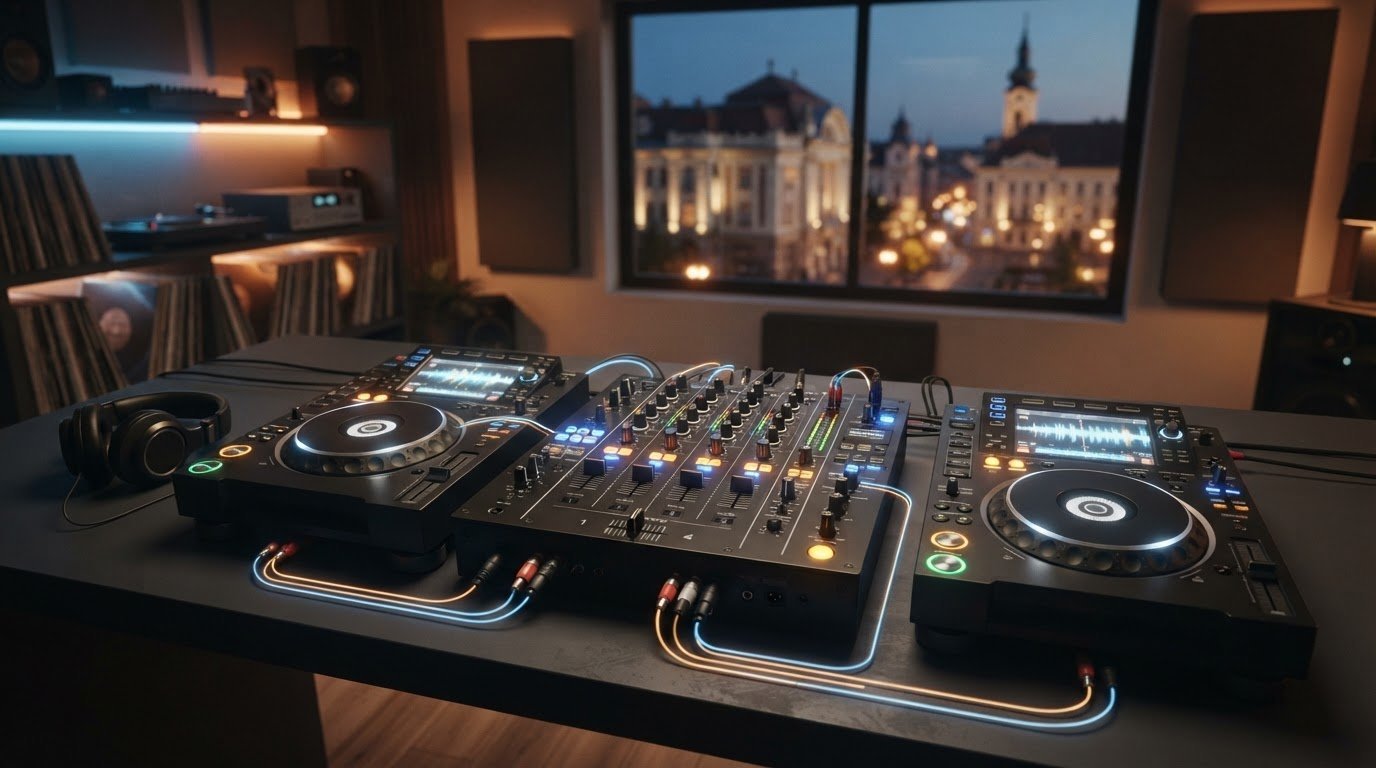
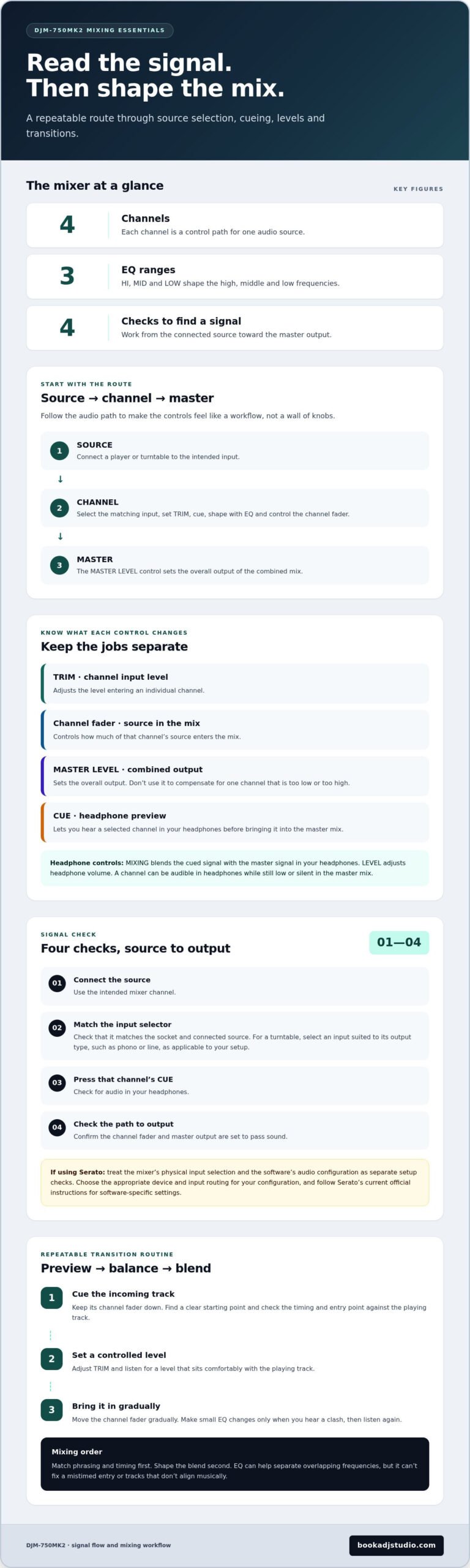
The Pioneer DJM-750MK2 is a four-channel DJ mixer. It takes audio from connected players or turntables, lets you shape and balance each source, then sends the combined mix to the master output. Keep this route in mind: source → channel → master. Understanding it turns the controls into a workflow rather than a wall of knobs. For a general overview of mixer components and signal flow, see this guide to the DJ mixer.
This djm 750mk2 mixer tutorial focuses on the DJM-750MK2. At Book a DJ Studio in Timișoara, the mixer is a Pioneer DJM-V10, so the panel layout differs. The core skills transfer between models: route a source, cue it, balance its level, and blend it with the playing track.
What each channel does in a basic DJ setup
A channel is the mixer’s control path for one audio source. Connect a player or turntable to the intended input, then use that channel’s input selector to choose the connected source. On the DJM-750MK2, the relevant channel controls include TRIM, the HI, MID, and LOW EQ knobs, a channel CUE button, and a channel fader. The official manual is the best reference for matching each label to its position on the panel.
Gain, labelled TRIM on the channel, adjusts the level entering that channel. EQ changes the high, middle, and low frequency ranges. CUE lets you listen to a selected channel in your headphones before bringing it into the main mix. The channel fader controls that source’s level in the mix, while the MASTER LEVEL control sets the overall output. Keep those jobs separate: a channel can be audible in your headphones while still low or silent in the master mix.
Choose the correct input source for your connected gear
The input selector needs to match the socket and source you’re using. A mismatch can leave the channel silent or route a different input than you expected. Before troubleshooting effects or levels, check the physical connection and selector together. For a turntable, make sure the selected input suits its output type, such as phono or line, as applicable to your setup.
For a first signal check, follow this sequence:
- Connect the source to the intended mixer channel.
- Select the matching input on that channel.
- Press that channel’s CUE button and check for audio in your headphones.
- Confirm the channel fader and master output are set to pass sound.
If you’re using Serato, treat the mixer’s physical input selection and the software’s audio configuration as separate parts of the setup. In Serato’s audio setup, choose the appropriate device and input routing for your configuration, then follow Serato’s current official instructions for software-specific settings. Don’t guess at driver steps. They can depend on your computer and software version.
Set levels, cue tracks, and shape a clean DJM-750MK2 mix
Build a routine you can repeat: select the source, preview it in your headphones, set its channel level, then bring it into the mix. That order helps prevent a quiet or unexpectedly loud track from catching you off guard. It’s the practical core of a djm 750mk2 mixer tutorial and a reliable starting point before you experiment with EQ.
Cue the incoming track before bringing it into the mix
Cue monitoring lets you hear a selected track in your headphones before it plays through the master output. On the DJM-750MK2, press the relevant channel’s CUE button to preview that channel. The headphone MIXING control blends the cued signal with the master signal in your headphones, while LEVEL adjusts headphone volume. Start at a useful phrase or beat, then check that the track’s timing and entry point fit the playing track.
Keep the incoming channel fader down while you listen. Find a clear starting point, check that the track is ready to enter, and adjust its TRIM so the channel level is controlled. When you’re prepared, move the fader gradually to introduce the track. This pause between previewing and opening the fader gives you time to correct the cue point or level before the audience hears it.
Balance channel levels and use EQ with intention
Listen to the blend as a whole rather than chasing a fixed meter position. TRIM controls the input level on an individual channel; the channel fader controls how much of that source enters the mix. The MASTER LEVEL control adjusts the overall output, so use it for the combined mix, not to compensate for one channel that’s set too low or too high. The Pioneer DJM-750MK2 official product page provides the manufacturer’s overview of the mixer and its features.
Use the channel’s HI, MID, and LOW EQ controls to shape how the two tracks sit together. If both tracks have strong bass at the same time, listen for a crowded or muddy low end and make a gradual adjustment. Move one control at a time, then listen again before changing anything else. EQ can help separate overlapping frequencies, but it can’t fix a mistimed entry or tracks that don’t align musically. Match phrasing and timing first; shape the blend second.
- Select the incoming channel’s CUE and find the track’s entry point.
- Check its TRIM and listen for a level that sits comfortably with the playing track.
- Bring the channel fader up gradually, then make small EQ changes only when you hear a clash.
Want to put that routine into practice in a focused session? Explore DJ studio access in Timișoara and build confidence through hands-on mixing.
Build transitions and use DJM-750MK2 effects without losing control
A strong transition starts with timing, not effects. Prepare the incoming track, listen to it in your headphones, and bring it in when its phrasing fits the track already playing. Keep both channel levels in view as you move the incoming channel fader gradually. Aim for a clear handoff, not a sudden jump in volume or energy.
Practise a controlled two-track transition
Choose an entry point that gives you time to hear the incoming track before it reaches the master mix. Start it from the cue point, check the beat and phrase against the playing track, then ease up the channel fader. Listen to both tracks together. Adjust levels or EQ only when you hear a reason, and lower the outgoing track as the new one takes over.
Repeat the transition with different track combinations. Try tracks with contrasting energy, vocal sections, or changes in arrangement. This helps you hear when a blend needs more time and when a clean, direct handoff works better. A straightforward transition keeps your attention on cueing, timing, and levels. It’s easier to monitor because fewer elements are competing for your focus.
For this part of a djm 750mk2 mixer tutorial, treat effects as an extra layer, not a rescue move. An effect won’t make mismatched phrasing line up or correct an incoming track that’s too loud. Get the basic blend working first. Then decide whether an effect adds something musical, such as emphasis at a phrase ending or a distinctive texture during a planned change.
Explore send-return and effects with a clear purpose
The DJM-750MK2 includes independent send-return, a separate effects workflow from simply blending two tracks. Because its connections and routing depend on the intended setup, use the official DJM-750MK2 manual for model-specific instructions rather than guessing at the signal path. Keep your first experiments simple: test one effect at a time and listen to how it changes the full mix.
An effects-led transition asks more of your attention. You’re monitoring the blend while judging the effect’s character, timing, and level. If the effect masks the beat or muddies the outgoing track, reduce or remove it. Make the musical decision first, then use the effect to underline it. A restrained effect at the right phrase can add character; constant processing can distract from the tracks and make the transition harder to control.
- Start dry: Practise the handoff with cueing, timing, channel levels, and fader movement.
- Add with intent: Test one effect, listen in context, and keep it only if it supports the phrase.
- Build consistency: Repeat the blend with different tracks before adding more complexity.
Troubleshoot common DJM-750MK2 setup and mixing problems
When audio disappears or a blend sounds off, resist the urge to change several controls at once. Troubleshoot from the source toward the output. That makes it easier to spot whether the problem is a connection, an input selection, a channel setting, or the master signal. In this djm 750mk2 mixer tutorial, the goal is a calm, repeatable check, not random knob-turning.
No signal? Check the source and cable, confirm the matching input is selected, then check the channel and master levels.
Why is there no sound from a connected source?
Start at the source. Confirm it’s powered and playing, and that its cable is connected to the intended mixer input. Then check that the channel input selector matches the connection. A player connected to one input won’t come through as expected if the channel is set to another. If you’re using a turntable, make sure the selected input type matches its output.
Next, check the signal path in order. Make sure the channel fader is raised enough to pass audio, and check TRIM and MASTER LEVEL without jumping to extreme settings. If you can hear the source through headphone cue but not in the main output, focus on the channel-to-master path. If cue monitoring is also silent, revisit the source, cable, and input selection first.
Computer-based setups add separate layers. The mixer’s physical input selection, the DJ software’s audio device and routing, computer permissions or audio settings, drivers, and firmware are not the same thing. Check the software’s current audio configuration and official support instructions for your operating system and version. Before changing drivers, firmware, or routing, consult the latest official documentation for both the mixer and software. Don’t install or change components as a guess. First identify which part of the signal path is failing.
What to do when a mix sounds unbalanced or unclear
If both tracks play but the blend feels muddy, harsh, or uneven, isolate the incoming channel with cue monitoring. Listen to it on its own, then compare it with the master mix. This helps you decide whether the problem comes from the incoming track’s level or from the way the two tracks overlap. Check the channel levels before adjusting EQ.
Make one small change, then listen again. If one track is overpowering the blend, adjust its channel level or TRIM carefully. If the overall mix is too loud or too quiet, assess the master output separately rather than using it to correct a single channel. For frequency clashes, try a restrained adjustment to one EQ band and listen in context. If the sound gets less clear, return toward the previous setting and reassess.
Build these checks into practice until they feel automatic. For a hands-on session with a ready-to-use DJ setup in Timișoara, book DJ studio access. The studio’s mixer is a Pioneer DJM-V10, so use the session to apply transferable signal-flow and troubleshooting skills while getting familiar with a different layout.
Turn DJM-750MK2 practice into a performance-ready set in Timișoara
Take the workflow you’ve built on the DJM-750MK2 into a real studio session. One important difference: Book a DJ Studio’s setup uses one Pioneer DJM-V10 mixer, not a DJM-750MK2, paired with two Pioneer CDJ-3000X players. The layout and controls differ, so give yourself a moment to get oriented. Your core skills still travel: cueing tracks, balancing levels, shaping EQ, listening for phrasing, and making intentional transitions.
Rather than reaching for a familiar control by habit, trace the signal and listen. Find the channel handling your source, preview it in your headphones, and identify the relevant level and EQ controls before starting your set. The studio equipment is powered on and configured for use, giving you space to focus on performance decisions and adapt your technique to a different mixer layout.
Practise transferable mixer skills on the studio’s DJM-V10
Bring a short set plan, but leave room to react. Practise clean cue points, steady channel levels, thoughtful EQ changes, and transitions that fit the music. Moving between mixer models is useful training: the control positions may change, while your job remains the same. Guide each track into the mix with control and listen closely to the result.
You can use a studio session to rehearse, record a DJ set with the wired recorder, or work with the complete live-streaming setup. For video, the setup includes three Sony ZV-E10 cameras and 4K recording from three angles. Choose your session goal before you arrive, so your track selection and set flow support the kind of performance you want to capture.
Prepare your music and book a session online
Prepare your USB music before the session: scan your tracks in Rekordbox, then export them to a USB stick that does not exceed 32 GB. Bring your own headphones. These steps help you arrive ready to focus on mixing rather than sorting out your library or missing essential gear.
After recording, your mix is emailed a few days later, rather than being available for immediate download. If you’re working toward a livestream, plan the set with that format in mind and use the studio’s complete live-streaming setup. The space supports focused rehearsal as well as a recorded or streamed performance.
Ready to put your practice into motion? Book your DJ studio session online through the website form. Pricing details are available there, too. Bring your prepared music, headphones, and a clear goal for the set. Then step up, listen closely, and make the room your own.
Take your next mix from practice to performance
The next step is to turn deliberate practice into a set you can play with confidence. Give yourself a clear musical goal, make purposeful choices, and stay present as each track unfolds. The djm 750mk2 mixer tutorial is a starting point, but your listening and decisions are what make a mix feel like yours.
Use a studio session to put those choices into action, hear your set from start to finish, and build momentum toward your next performance. You don’t need to wait until every transition feels perfect. Show up ready to experiment, learn from what you hear, and shape the sound you want to share.
Book an online DJ studio session in Timișoara and give your next set room to grow. Trust your ears, back your instincts, and keep moving forward.
Frequently Asked Questions
How do you set up a Pioneer DJM-750MK2 for the first time?
Connect your audio sources and headphones, then connect the master output. Select the matching input for each source and test one channel at a time. Use the official manual for model-specific connection details.
How do you select the correct input on a DJM-750MK2?
Set the channel’s input selector to match the source and connection. If it’s silent, compare the selected input with where the cable is actually connected.
Can you use a DJM-750MK2 with Serato DJ Pro?
Yes. Serato DJ Pro 4.0.6 officially supports the mixer. DVS requires a paid upgrade to Serato DJ Suite. Check Serato’s current setup guidance for your computer and software version.
Why is there no sound coming from my DJM-750MK2?
Check that the source is playing, its cable is connected, and the correct input is selected. Then check the channel and master signal paths. For software playback, review audio routing.
How do you use the DJM-750MK2 send-return feature?
Send-return routes audio through an external effects device and back into the mixer. Follow the official manual for connections and routing, then test one effect and listen to its impact.
Can I practise DJM-750MK2 skills at Book a DJ Studio?
Yes. Practise transferable skills in the Timișoara studio, which uses a Pioneer DJM-V10 rather than a DJM-750MK2. Allow time to get familiar with the different control layout.
What should I bring to a DJ studio session in Timișoara?
Bring your headphones and music scanned in Rekordbox and exported to a USB stick no larger than 32 GB. Book your session online through the website form.