

What if the red light isn’t the control you need to turn down? A channel can run hot while the master meter stays calm, or the master can peak when two tracks meet in the mix. Learning how to avoid redlining on a dj mixer means following the signal chain instead of chasing a single light. Red does not always mean audible clipping has started, but sustained hot levels leave less room for EQ boosts, overlapping tracks, and unexpected peaks.
You do not have to make your set feel flat to keep it clean. This guide shows you how to read channel and master meters, set levels from the player through the channel to the master, and investigate distortion by listening and checking a recording rather than relying on one universal meter threshold. You will also learn why distortion created earlier in the chain cannot be fixed by lowering the master. To put the workflow into practice, rehearse transitions on the studio’s Pioneer DJM-V10 and pay attention to how your mix holds together as the energy builds.
Key Takeaways
- Learn how to avoid redlining on a dj mixer by tracing level changes through the full signal path instead of reacting to one meter.
- Set levels using a loud, representative passage. Quiet intros can hide peaks that appear when a track reaches full energy.
- Use channel gain to correct a hot source. Lowering the master or relying on a limiter will not undo distortion created earlier in the chain.
- Before a set or recording, check source playback, channel and master meters, and your monitoring with a loud section and a transition.
- Practise the workflow in Timișoara on two Pioneer CDJ-3000X players and one Pioneer DJM-V10 mixer.
How to Avoid Redlining on a DJ Mixer: Understand What the Red Means
A red meter warns that a signal may be outside its intended operating range. It is not a universal verdict that clipping has occurred. A brief peak and a meter that stays red through a loud passage are different situations, so check the mixer manual and listen for changes in the sound.
What does a DJ mixer’s red meter indicate?
Meter colours and scales vary by mixer. Check the manual to understand what each channel and master display measures; do not rely on a fixed red-light-count rule. Clipping occurs when an audio signal exceeds the maximum level a system can represent, causing its peaks to distort. For broader context on managing levels across a signal path, see What is Gain Staging?
Channel, master, recorder, and speaker stages each need attention. A clear mixer meter does not confirm that the recorder or speaker input is receiving a clean signal. Treat each meter as information about the point it measures, not the entire system.
Can redlining affect sound quality or equipment?
Actual clipping can distort audio, but a red indicator alone does not prove clipping or equipment damage. Avoid treating forum claims that red is always harmless or always dangerous as universal guidance. Interpret the meter for your specific mixer and investigate sustained warnings.
Headroom leaves space for peaks. A limiter may control peaks at the stage where it operates, but it cannot restore clean audio if distortion has already entered the signal. Lowering the master after that point only reduces the level of the distorted signal.
How to Avoid Redlining by Setting Gain Through the Signal Chain
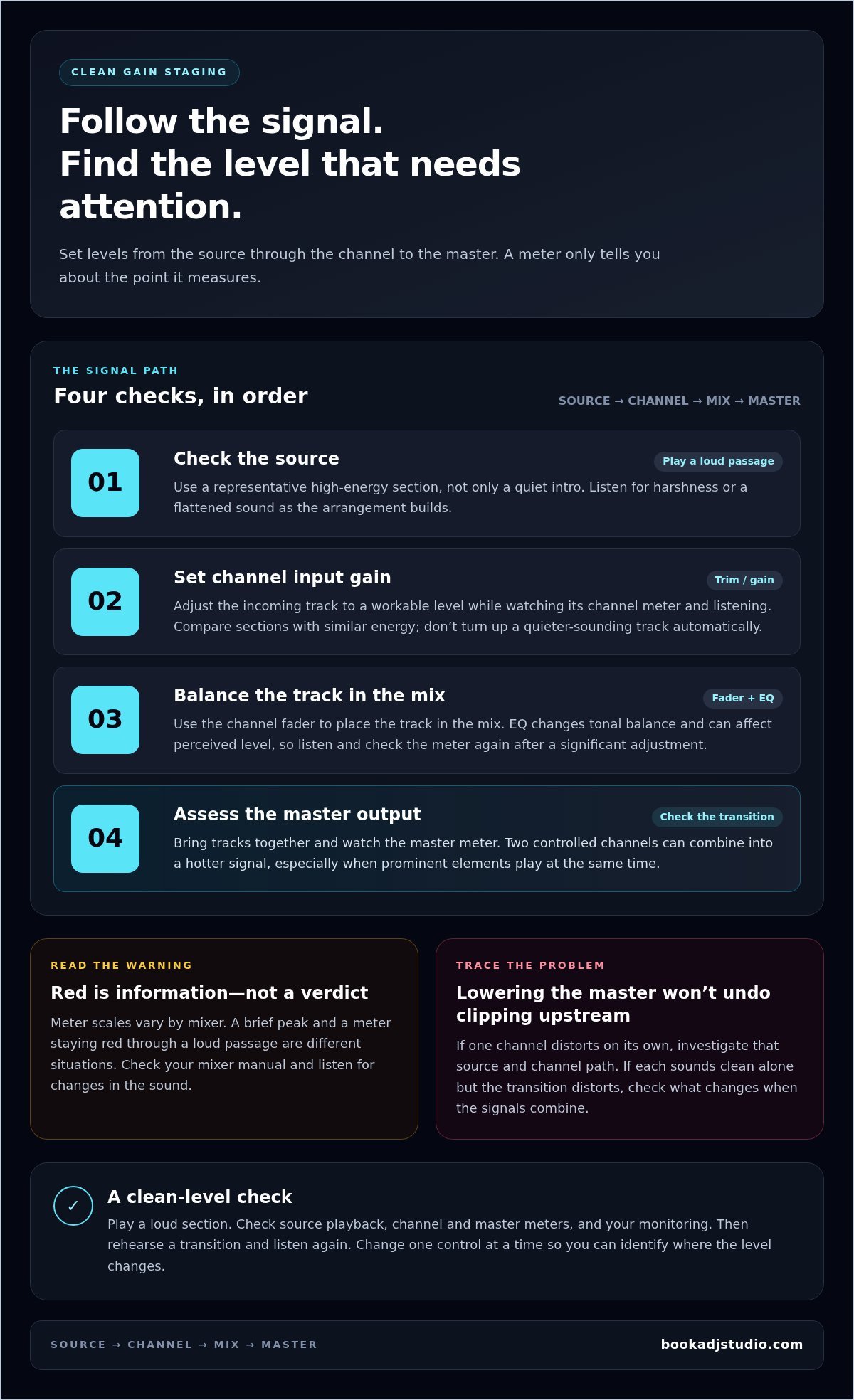
Build a repeatable routine and use it for every track. Check the source first, set the channel input gain, balance with the channel fader, then assess the master output. This order helps you find where a level becomes too hot instead of trying random controls. For a broader explanation of level management across a signal path, iZotope’s Gain Staging: Optimizing Audio Levels outlines why each stage matters.
Set channel input gain before balancing the mix
Start with the incoming deck. Play a representative loud passage, not only the intro. A quiet opening can make a track seem safe, then its kick, bass, or full arrangement arrives and pushes the channel much harder. Use the trim or gain control to bring that track’s input into a workable range. Watch the channel meter and listen for harshness or a flattened sound.
Next, compare the two tracks at similar perceived loudness. A track that sounds quieter may have a different arrangement or tonal balance, so do not automatically turn up its gain until the meters match. Listen to sections with comparable energy, make a small adjustment, then reassess. Change one control at a time so you can tell whether the difference came from input gain, fader position, or EQ.
Keep those jobs separate. Input gain sets the incoming signal level; the channel fader shapes its place in the mix. EQ changes tonal balance and can also affect perceived level, so check the meter and listen again after a significant EQ adjustment. Consult the manual for your specific mixer to understand its meter scale, indications, and operating guidance. A colour or number of LEDs does not mean the same thing on every model.
Check the master output after the channels
Once each channel is set, bring both tracks together in a representative transition. Watch the master meter as the signals overlap. Two channels that look controlled on their own can combine into a hotter master signal, especially when bass or other prominent elements play at the same time. Make the transition part of your level check, not an afterthought.
If the master runs too high, identify which channel or transition is pushing it and correct that source. Lowering the master can reduce the output level, but it will not clean up distortion already introduced at an overloaded channel input. If the mix sounds distorted while the meters appear controlled, do not raise the master to force more volume. Trace the route from source through channel and master, checking one stage at a time.
Practise the sequence with real transitions and loud sections at a DJ studio in Timișoara. Repeating the same source-to-master check helps make clean gain staging part of your performance workflow, rather than a last-minute fix.
Redlining Myths: Fix the Signal, Not Just the Mixer’s Master Level
Turning down the master can lower the level sent onward, but it cannot undo distortion created earlier in the signal path. If a deck or mixer channel has already clipped, the distorted signal still reaches the next stage, only quieter. That is why how to avoid redlining on a dj mixer means finding where the problem starts, not simply moving the last control you can reach.
There is no dependable “one red light is fine” rule for every mixer. Meter design and behaviour vary by device, so use the manufacturer’s manual to interpret the specific channel and master displays. A limiter does not change that. It may control peaks where it operates, but it cannot restore clean audio that was already distorted upstream. Relying on it can also mask a level problem instead of solving it.
Does turning down the master stop clipping?
Use a simple comparison. Listen to one channel at a time, then bring both into the mix. If distortion follows a particular deck even when it plays alone, investigate that source and its channel path. If each channel sounds clean alone but the full transition distorts, check what changes when the signals combine and inspect the master and later stages.
Make one adjustment at a time, then listen again. Consult your mixer’s manual for its meter behaviour and operating guidance; do not assume a red-light count translates across models. Lowering the master can help if the issue begins at the master output, but it will not repair clipping already produced by an overloaded input or channel stage.
Why can a set still sound distorted when the meter looks clear?
The mixer is not the only possible source. Distortion may enter at source playback, appear in the mixer’s signal path, arise at a recorder’s input, or occur at a speaker input. A mixer meter only tells you about the point it measures. It cannot confirm that every connected device is receiving and handling the signal cleanly.
Trace the route. First, listen to the source through the mixer at a controlled level. Then compare the mixer output with a recording, if you are recording, and check the speaker input separately. If distortion appears only in the recording, focus on the recorder stage. If you hear it only through the speakers, inspect that part of the setup. Change one stage at a time, using the relevant device manual to interpret its controls and indicators.
Keep the diagnosis practical: note where the distortion first becomes audible, then work backward from that point through the connected stages. Do not treat a clear mixer meter as proof that the recorder or sound system is clean, and do not assume every red flash means damage. The equipment determines what its meters indicate; careful listening and stage-by-stage checks show where to act.
A Practical DJ Mixer Checklist for Keeping Levels Clean During a Set
Turn your gain-staging routine into a quick pre-set ritual. A consistent check helps catch level problems before the room fills with energy and gives you a clear starting point if something sounds off mid-mix. Use the mixer’s manual to understand its meters, then let your ears and the signal path guide your adjustments.
What to check before you start mixing
Test the loudest planned section of each track, not just a soft intro. Check each channel on its own, then play both together through a representative transition. Set a monitoring level that lets you hear tonal changes and distortion clearly. Turning up the monitors can make a problem louder, but it will not make the signal cleaner.
- Check source playback. Play a familiar, full-energy passage and listen for distortion before making level changes.
- Watch each channel meter. Confirm that the channel behaves as expected through the loud section, and note whether one deck consistently reads higher.
- Test the transition. Bring both tracks in as you plan to mix them. Watch how their combined signal affects the master meter.
- Check your monitoring and recording path. Listen at your intended monitoring level and, if you are recording, check the recorder’s input as well.
For a clean mix, check the source first, then the channel, master output, and each downstream stage. Keep that order in mind before you start and as the set develops.
What to do when the meter enters the red
Do not turn several controls at once. Identify whether the warning appears on one channel or the master, then isolate the signal: listen to that channel alone and see whether the issue follows it. If it does, inspect its source and input gain first. If the channels sound clean alone but the combined mix triggers the warning, focus on the transition and master output.
- Locate the warning. Identify which channel or output meter is showing it, using your mixer manual to interpret the display.
- Adjust the likely source. Reduce the level at the stage where the signal becomes too hot, rather than using a later control to mask it.
- Listen again. Replay the same passage or transition and check whether the sound and meter response improve.
- Trace further if needed. If the distortion remains unclear, inspect source playback, mixer output, recorder input, and speaker input one stage at a time.
That repeatable process is the practical core of how to avoid redlining on a dj mixer. Want to run the checklist on festival-style DJ gear? Book studio access to practise your set on a Pioneer DJM-V10.
Practise Clean Gain Staging on a DJM-V10 in Timișoara
Knowing the steps is one thing. Repeating them through real transitions is how level control becomes part of your performance, even when the mix gets busy. In Timișoara, you can put the workflow into practice at a studio equipped with two Pioneer CDJ-3000X players and one Pioneer DJM-V10 mixer. Use familiar tracks, then challenge yourself with a transition where both decks carry strong musical elements.
Apply the workflow on the studio’s DJM-V10 setup
Start with one player at a time. Play a loud, representative section and set the channel level while watching the mixer’s meter. Bring in the second CDJ-3000X and rehearse your transition, paying attention to how the combined mix behaves at the master output. If you hear distortion or see a level warning, pause and identify the point in the chain that needs attention before changing another control.
Repeat with different tracks and transition styles. A blend with overlapping bass may behave differently from a handover where one track fades out before the next comes in. Practising both helps you make adjustments deliberately, rather than reaching for the master control whenever the energy rises. For more context on the setup and the equipment used in a DJ booth, explore this professional DJ equipment guide.
Keep your attention on the music as well as the meters. Listen for harshness, flattening, or a sudden change in tone when you bring in the next track. Make one adjustment, replay the transition, and note what changed. That hands-on loop helps turn how to avoid redlining on a dj mixer from a checklist into a reliable habit you can carry between setups.
Turn a practice session into a recorded set
Once your levels feel consistent, try running a longer set without stopping after every transition. The studio provides a wired recorder for recording DJ sets, so you can listen back and assess how the level balance holds across the full mix. A recording can reveal moments you missed while performing, such as a transition that feels clean in the booth but sounds uneven when you hear the set from start to finish.
To prepare your set, scan your tracks in Rekordbox before exporting them to a USB stick. The maximum USB size is 32 GB. Bring your headphones and music on a USB stick or HDD. Recorded mixes are uploaded and emailed to the address on your booking schedule a few days after recording. If you want to plan the capture alongside your practice, this DJ set recording guide adds useful workflow context.
Ready to rehearse your transitions on the DJM-V10? Book a DJ studio session online through the website form and put your gain-staging routine into motion.
Make Clean Levels Part of Your Signature Sound
Your next breakthrough does not have to come from turning everything up. Build confidence by noticing how your level choices shape the feel of a transition, then trust the habits you have practised when the set starts moving fast. Each session is another chance to make clear, controlled sound feel natural rather than restrictive.
Keep the focus on musical impact. Let the energy come from track selection, timing, and a confident blend rather than a meter pushed to its limit. As you refine how to avoid redlining on a dj mixer, you will develop a more deliberate approach that supports both the performance and the sound you want listeners to remember.
Ready to put that mindset into practice? Book a DJ studio session in Timișoara and put your gain-staging skills into practice. Choose your session online through the website form, bring your music and headphones, and step into your next set with intention.
Frequently Asked Questions
What does the red light on a DJ mixer mean?
A red light signals that the level has reached a point the mixer marks for attention, but its exact meaning depends on the model and meter. Check the manual to see what the indicator represents and whether it refers to a channel or the master output. For example, if only one channel lights red when a track’s kick hits, investigate that channel rather than changing the whole mix.
Is it bad to briefly hit the red on a DJ mixer?
A brief flash is not enough on its own to tell you whether the audio has clipped. Listen for a harsh or flattened sound, and check whether the meter stays in the red during louder passages. If it happens repeatedly on the same track, review that channel’s level before your next transition. Do not use a universal red-light count as a safe threshold; follow the mixer’s manual.
Can redlining damage a DJ mixer or speakers?
A red indicator alone does not prove that a mixer or speaker has been damaged, and it does not confirm that every signal is harmless. The result depends on the device, the signal level, and how long it is exposed to that level. If you hear distortion or notice unusual behaviour, lower the signal and consult the equipment manuals for operating guidance. Avoid treating forum anecdotes as a reliable damage test.
Why does my mix sound distorted when the mixer meter is not red?
Distortion can begin somewhere the meter you are watching does not measure. A track may already sound distorted at its source, or the recorder or speaker input may be receiving a problematic level even while the mixer display looks clear. Compare the sound through headphones and speakers, then check any recording separately. That comparison can help reveal whether the issue is in playback, the output path, or the recording.
Does turning down the master volume fix redlining?
Only if the problem starts at or after the master output can lowering it address that stage’s level. It will not remove distortion already present in a source or channel. Try muting or fading channels one at a time to see whether the sound changes, then check the output path. This helps you avoid making the entire set quieter while leaving the original fault untouched.
Should a DJ use a limiter to prevent redlining?
A limiter can control peaks where it is placed, but it should not replace careful level setting. If a signal is already distorted before it reaches the limiter, limiting will not restore the clean version. Keep the limiter’s role clear: it may help manage later peaks, while you still need to check source, channel, and output levels. For how to avoid redlining on a dj mixer, use the limiter as a safety tool, not a reason to ignore the meters.