
Your mix can sound full in your headphones yet reach the livestream distorted, thin, or too quiet. A last-minute software tweak may not solve it. To get a clean audio feed for streaming, trace the signal from your mixer to the streaming setup before your set begins.
Choose the right source, balance the levels, and test what the audience will hear. This guide shows you how to check the signal path, compare audio capture options, and troubleshoot common stream problems, so you can prepare with confidence and focus on your performance.
Key Takeaways
- Learn why a direct mixer feed usually gives a mix-focused livestream more clarity than capturing sound across the room.
- Map the audio route from your DJ players through the mixer and into streaming software, matching each connection to the equipment in use.
- Use a pre-stream check to spot unwanted noise, level problems, or clipping before your audience hears them.
- Follow a practical test-and-adjust process to get a clean audio feed for streaming, then recheck your sound before going live.
- Explore Book A DJ Studio’s ready-to-use setup in Timișoara, featuring two Pioneer CDJ-3000X players and one Pioneer DJM-V10 mixer.
How to Get a Clean Audio Feed for Streaming: Start with the Signal Source
A direct mixer feed and a microphone recording the room don’t capture the same performance. The direct feed takes audio from your DJ chain. A room microphone also picks up the space around you, including speaker sound, reflections, and nearby noise. Choose the source that fits the experience you want your audience to hear.
A clean livestream audio feed is a clear, controlled signal from your performance, without audible clipping or unwanted room sound. That gives you a useful target before you adjust any settings. You’re not just trying to make the stream loud. Aim for music that stays clear and consistent, without distortion or distracting sounds competing with the mix.
Your source shapes that result from the start. If the streaming software receives a signal that already includes excess room sound or distortion, later adjustments may not remove the problem cleanly. Understanding the route each sound takes through your equipment, often called Audio Signal Flow, helps you identify where the stream gets its audio and what you’re sending to your audience.
What does a direct DJ audio feed capture?
A direct feed takes sound from the DJ audio chain rather than using a microphone to capture the performance across the room. The stream receives the mix from a point in the equipment setup instead of picking up the speakers and surrounding space acoustically. The exact route depends on the mixer and streaming setup, so don’t assume every rig connects in the same way.
For a mix-focused livestream, a direct feed is often a practical starting point: the music reaches the stream without first being captured by a room microphone. But direct doesn’t automatically mean clean. If the incoming signal is distorted or poorly controlled, that issue can carry into the stream. Think of the feed as the source material for your broadcast, not a fix for problems earlier in the chain.
Why can room audio sound different online?
A room microphone captures more than the music coming from your setup. It may pick up room reflections, crowd or movement sounds, and the way speakers interact with the space. That can add atmosphere and make a stream feel connected to the physical environment, but it can also make the music less direct or bring in sounds you’d rather keep out.
A direct feed generally gives the online listener a closer view of the mix, while a room microphone can communicate more of the setting. Neither route is right for every stream. If the performance itself is the focus, start by considering a direct source. If the room’s energy matters, a microphone may contribute useful ambience. Decide whether your production needs one perspective or a deliberate blend, then test what reaches the stream before you go live.
Keep the goal simple: choose a source that matches your set, then listen to what your audience will receive. That’s the first move toward getting a clean audio feed for streaming. Once you know where the sound originates, you can map the connections and troubleshoot the path with confidence.
Build a DJ Streaming Signal Path Without Guessing at the Connections
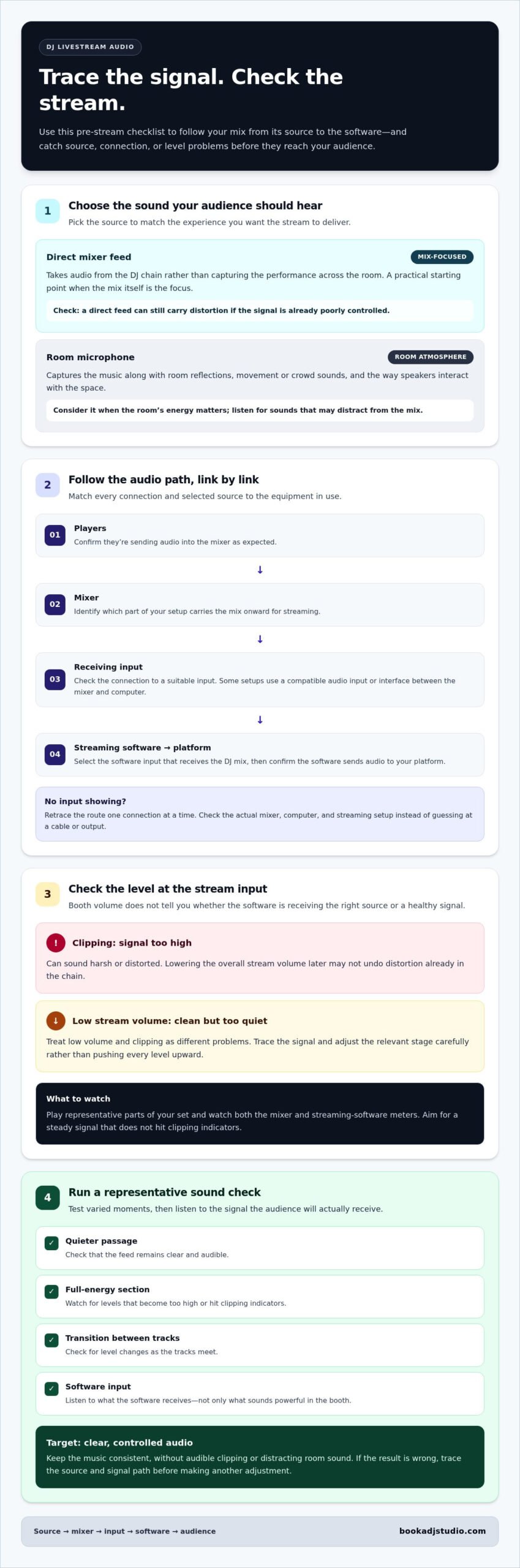
Once you’ve chosen your audio source, trace its route all the way to the audience. The basic path is straightforward: your DJ players send audio to the mixer, the mixer’s signal reaches a suitable input on the streaming setup, streaming software receives that input, and the software sends the audio to your platform. Every link matters. A wrong or unselected input can leave the stream silent, while an unsuitable level at one stage can affect everything that follows.
- Start with the players. Confirm they’re sending audio into the mixer as expected.
- Follow the mixer’s signal. Identify which part of your setup carries the mix onward for streaming.
- Check the receiving input. Some setups use a compatible audio input or interface between the mixer and computer. The right connection depends on the equipment in use.
- Select the source in your software. Make sure the streaming application is listening to the input that receives the DJ mix.
Trace the audio from the mixer to the stream
Don’t choose a cable or output by guesswork. Check the actual mixer, computer, and streaming setup, then match the connection and selected input to those devices. Follow the same audio signal at each stage instead of assuming that a connection used in another DJ booth will work in yours. If the stream software shows no input, retrace the path one link at a time.
Check the stream at its input, because the audience can only hear the signal your streaming software receives. That’s a useful principle even if the booth sounds powerful. Speaker volume describes what you hear in the room; it doesn’t tell you whether the stream is receiving the right source or a healthy signal. Turning up the booth won’t automatically improve the feed.
Set a stable level before going live
Clipping happens when a signal is too high for a stage in the audio chain to handle cleanly. It can sound harsh or distorted, and lowering the stream’s overall volume later may not undo that distortion. Low stream volume is a different issue: the audio may be clean but too quiet for comfortable listening. Treat these as separate problems, and use the relevant level indicators to see where the signal is landing.
Play representative parts of your set while watching the mixer and streaming software meters. Include a quieter passage, a full-energy section, and a transition where track levels may change. Aim for a steady signal that doesn’t hit clipping indicators, then check what the software receives rather than judging only by booth sound. If the feed is too quiet, trace the signal and adjust the appropriate stage carefully instead of pushing every level upward.
Signal flow is easier to trust when you can follow it from source to software. A ready-to-use DJ studio setup for streaming in Timișoara gives you a practical environment to prepare your set and work through that path.
Direct Mixer Feed or Room Microphone: Which Streaming Audio Route Fits?
Choose your audio route based on what you want the audience to experience. A direct mixer feed puts the music mix front and centre. A room microphone captures the sound in the space, which can add a sense of presence but may also pick up reflections, nearby conversations, or other background noise. Neither approach is automatically right for every stream. The best fit depends on whether your set calls for focused music or a feel for the surrounding atmosphere.
- Direct mixer feed: Useful when the mix itself is the main event. It avoids relying on a microphone to capture speakers across the room, but the connection and level still need careful setup.
- Room microphone: Useful when the sound of the space contributes to the performance. Results depend on microphone placement and what else is audible nearby.
When a direct feed is the practical choice
If listeners are tuning in for your track selection, blends, and transitions, a direct feed is often the practical starting point. It takes sound from the DJ audio chain rather than capturing the speakers and room together. That can keep the music in focus, but it doesn’t guarantee a clean result on its own. Set levels carefully and make a test recording or listen to a test stream before performing.
Keep the equipment in view, too. A mixer’s connection options and the streaming device’s available inputs determine how the feed can be routed. Don’t assume the mixer connects directly to every computer or streaming setup, or that one cable choice applies to all rigs. Confirm the actual path and make sure the software is receiving the intended source. Then listen back for distortion, unexpected silence, or a level that feels too low.
When ambient sound may matter to the performance
Sometimes the room is part of the show. A microphone capturing the space may convey audience reaction, movement, or the character of a venue in a way a direct music feed won’t. That added atmosphere can make sense for a performance where the setting matters as much as the mix.
There’s a trade-off. The microphone also captures whatever reaches it, including unwanted noise and room reflections that can make the music less distinct. Placement matters: a microphone near a loud source may capture a different balance than one positioned to hear more of the space. Test the sound from the stream’s perspective, not just in the room, and adjust the setup if competing sounds distract from the set.
To get a clean audio feed for streaming, start with the experience you want to create, then choose the source that supports it. For a music-led broadcast, test a direct feed first. For an atmosphere-led set, check whether room sound adds energy without pulling attention away from the music. Trust the test, not assumptions.
How to Test and Troubleshoot Your DJ Stream Before It Goes Live
A quick sound check at the booth isn’t enough. Your speakers can sound fine while the stream receives the wrong source, an uneven level, or only one channel. Run this sequence before each session, then listen to what the audience will actually receive.
- Route: Trace the audio from your players through the mixer to the streaming input. Confirm that each connection is seated and that the software has the intended audio source selected.
- Play: Run a representative part of your set, including a quieter passage, a loud section, and a transition. A brief intro alone may not expose level changes or distortion.
- Monitor: Watch the available level indicators as the music plays. If your setup allows you to monitor the stream output with headphones, listen there too.
- Test: Start a private or otherwise suitable test session, or make a test recording if that option is available. Check the captured audio, not just the sound in the booth.
- Adjust: Change the setting that matches the problem, such as the selected source or an excessively high level. Avoid changing several controls at once.
- Recheck: Play the same sections again and listen for a stable level, clear sound, and both channels. Repeat the test after any adjustment.
Run a short test before the performance
Make the test long enough to include the different energy levels in your set. Listen on headphones where the setup allows, and check the stream capture for distortion, inconsistent volume, a missing left or right channel, or room noise you didn’t intend to include. Verify the selected audio source in your streaming software and review the platform’s current audio input settings before starting the live session.
Focus on the captured output. Booth speakers tell you how the room sounds, not exactly what the software is sending. A test recording or monitored stream output can reveal problems such as a level that jumps during a transition or music that sounds muffled online.
Fix common audio problems methodically
Distortion usually calls for checking whether the signal is too high at any available stage; weak or missing sound calls for checking source selection, routing, and input settings first. If one channel is absent, inspect the route and channel indicators rather than simply turning up the master level. If room noise appears unexpectedly, check whether the software is receiving a microphone or another ambient source.
Change one setting at a time. Then replay the same section and listen again, so you can tell whether the adjustment helped. If the symptom remains, move to the next stage in the path instead of making several changes blindly. This steady process helps you get a clean audio feed for streaming without turning a sound check into guesswork.
Build that routine around a real DJ setup. Prepare your next livestream at Book A DJ Studio in Timișoara, with a ready-to-use DJ booth and complete live-streaming setup.
Stream a DJ Set in Timișoara with a Ready-to-Use Studio Setup
Putting your audio checks into practice is easier when the DJ booth and livestreaming setup are ready for a session. Book A DJ Studio in Timișoara is a space for practising, recording, and streaming a DJ set, with equipment powered on and configured for studio use. You can focus on preparing your performance and checking the stream, rather than starting with an empty room.
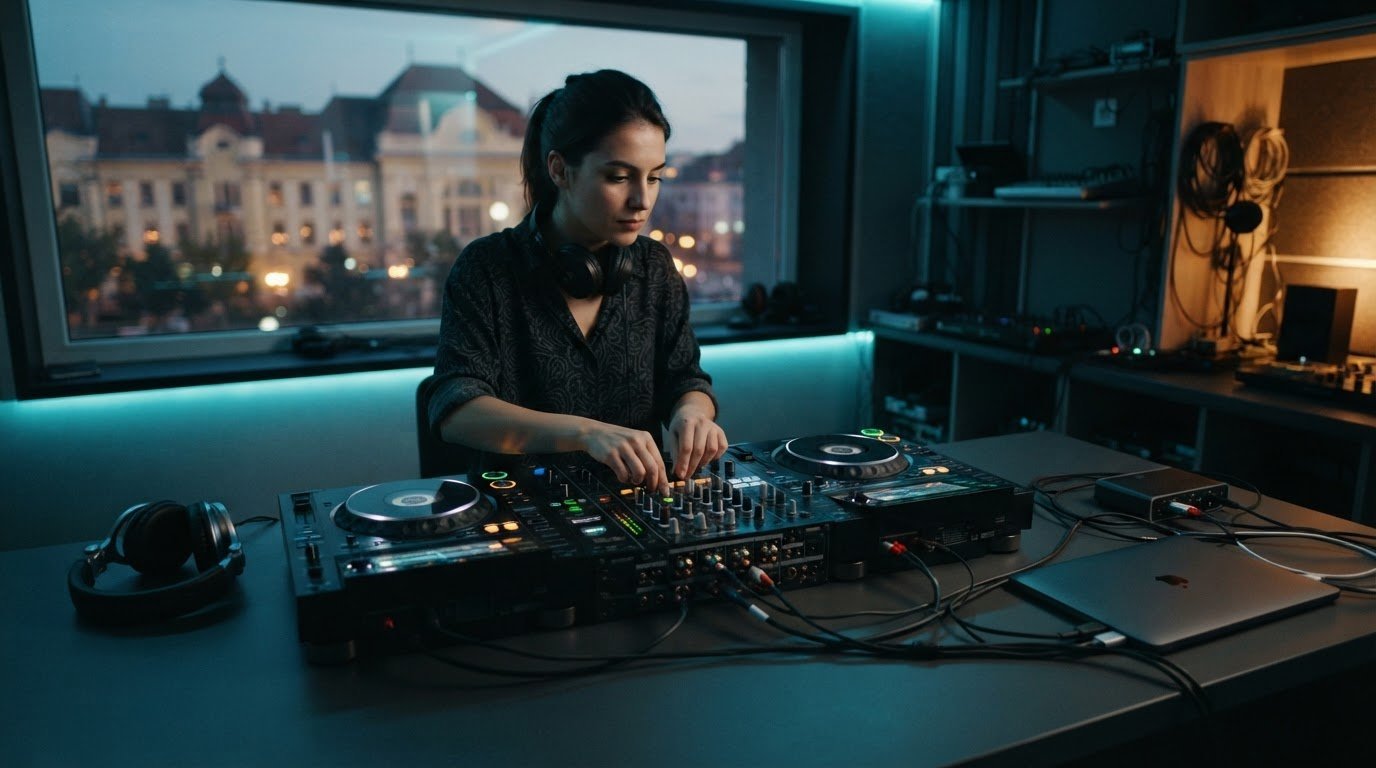
The booth includes two Pioneer CDJ-3000X players and one Pioneer DJM-V10 mixer. The studio also has a complete setup for live streaming to social media, including YouTube, plus three Sony ZV-E10 cameras for 4K video from three angles. The livestreaming setup and the separate wired recorder support different session needs, so decide whether you’re preparing to go live, record a set, or do both.
What the studio setup brings to your session
The audio setup also includes a Yamaha DXS15 MKII subwoofer and two Yamaha DXR12 MKII speakers. These are part of the studio equipment, but don’t assume that booth sound alone tells you exactly what the online audience will hear. Use your session to prepare, monitor the available stream output, and check the audio feed in the live-streaming setup. Follow the actual connections when you do your sound check.
The wired recorder is separate from livestreaming. If you’re preparing a recorded set, bring a USB stick no larger than 32 GB. Scan your tracks in Rekordbox before exporting them to the stick. Keeping the purpose of your session clear helps you make the most of your time at the decks.
Prepare for a smooth session in Timișoara
You’ll find the studio at Str. Cipian Porumbescu no. 76, ap. 2, Timișoara, Romania. Bring your headphones and your music on a USB stick of up to 32 GB or on an HDD; scan your tracks in Rekordbox before exporting them to a USB stick. Bring your personal record collection if you plan to use it. Before the session, decide which platform you plan to stream to and review its current audio settings. Use the sound-check sequence from this guide to check the source, listen for distortion or unwanted noise, and verify what the stream receives. The DJ studio gallery offers a look at the space as you plan your setup.
To get a clean audio feed for streaming, build in time to test the signal before your performance begins. Bookings are made online through the website form, where you can select an available day and time. Book an online studio session and bring your next set to a ready-to-use DJ space in Timișoara.
Make Your Next Stream a Confident One
Let your next livestream start with intention, not last-minute guesswork. A focused sound check can become part of your performance routine, giving you room to settle in, trust your setup, and put your energy where it belongs: behind the decks. Each session is a chance to sharpen that process and make your sound more controlled from the first track to the last.
If you’re ready to get a clean audio feed for streaming, bring your set to a space built for DJ practice and livestreaming. Book A DJ Studio in Timișoara has a welcoming local studio where you can prepare your next broadcast with purpose.
Book an online DJ studio session and take the next step toward a stream that feels as strong as your set. Get your sound dialled in, step up to the decks, and let your next performance speak for itself.
Frequently Asked Questions
How do I connect a DJ mixer to streaming software?
Route the mixer’s audio into an input your computer or streaming device can receive, then select that input as the audio source in your streaming software. The exact connection depends on the mixer, computer, and any compatible interface in your setup. To get a clean audio feed for streaming, confirm that the software’s input meter responds when you play a track, then check a short capture before broadcasting.
Is a direct mixer feed better than using a microphone for a DJ livestream?
A direct mixer feed is often a useful starting point if the music and transitions are the focus, while a microphone can add the feel of a room or audience. Neither route is best for every performance. For example, a studio-style mix may benefit from a direct source, while a set built around crowd energy may need ambience. Test your chosen approach and listen for background sounds that distract from the music.
Why does my DJ stream sound distorted?
Excessive level is one possible cause, but distortion can enter at more than one point in the signal path. Check the mixer’s level indicators, the receiving input, and the streaming software meter while playing a loud passage. If one stage shows overload, lower that stage and test again. Avoid compensating by turning down only the final stream volume, since distortion may already be present earlier in the chain.
Can I monitor what my audience hears while streaming?
Yes, if your streaming setup provides a way to monitor its output. Use headphones to listen to a test capture or monitored stream, rather than relying only on booth speakers. This can reveal a missing channel, unexpected room sound, or a level that differs from what you hear at the mixer. Monitoring options vary by setup, so identify the available output before your session and test it.
How can I fix a delay between DJ audio and livestream video?
Check the audio and video sync controls in your streaming software and the current settings for your chosen platform. Make a short test capture, then compare a visible cue, such as a hand movement, with the sound it should match. Change one sync setting at a time and test again. Platform menus and instructions can change, so use the current guidance for your specific streaming service rather than relying on old steps. For larger event broadcasts where multi-camera video and live sound must stay in sync, professional technical teams such as Ambassador Event Production manage the entire audio-visual and video production workflow.
Can I livestream a DJ set from Book A DJ Studio in Timișoara?
Yes. Book A DJ Studio in Timișoara provides a complete setup for livestreaming DJ sets to social media, including YouTube. Plan your set and allow time to check your audio and platform settings before performing. Bookings are made online through the website form, where you select an available day and time. It’s a practical local space to prepare and share your next set with an online audience.